
SwifDoo PDF – PDF Editor to Edit, Convert & Sign PDF Files Overview 2026
swifdoo.com Deal
swifdoo.com
About swifdoo.com
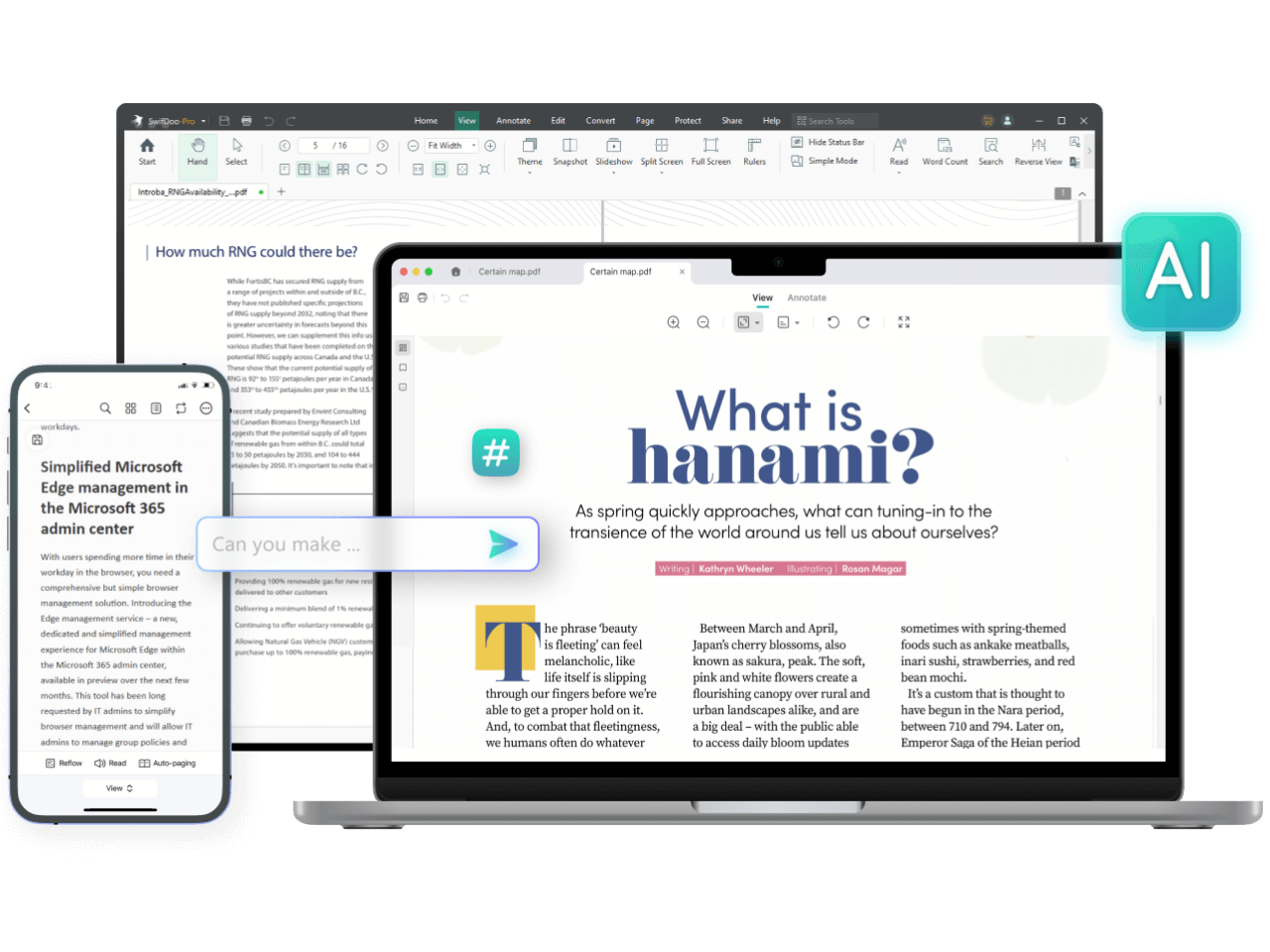
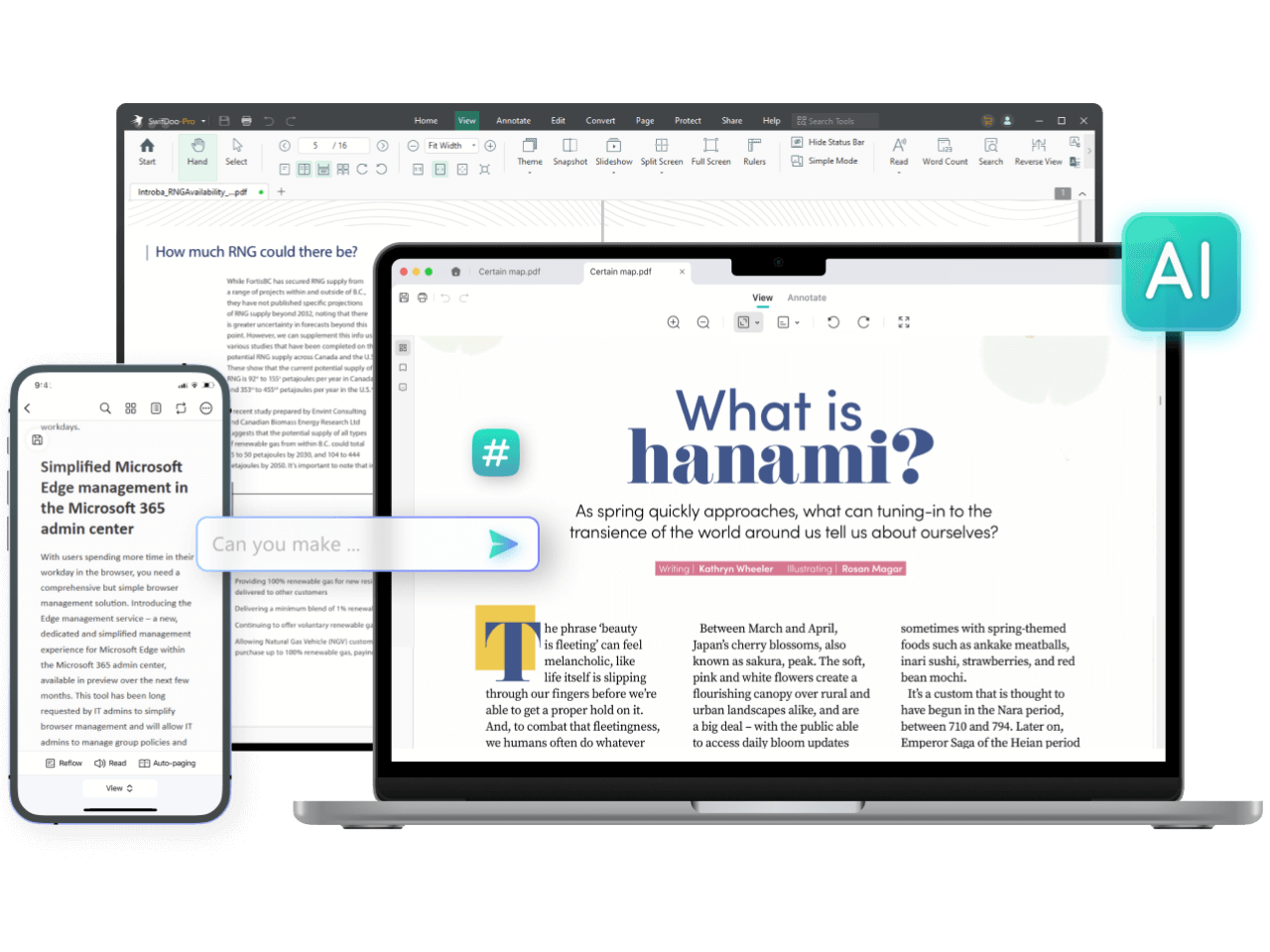
Need to create, edit, convert, annotate, OCR, protect, and translate PDFs? SwifDoo PDF matches your needs and handles PDF files with ease.
SwifDoo PDF Review — Worth it? Best for Windows users who need a lightweight PDF editor
Dealing with PDFs can feel like a daily grind: forms that won’t edit, documents that lose formatting when converted, or software that slows your machine and your workflow. If you need a swift, no-nonsense way to edit, convert, and sign PDFs on Windows without the bloat of enterprise suites, SwifDoo PDF promises to be a practical solution. In this review I’ll walk through what it does well, where it falls short, and who should consider it.
Quick Snapshot
- Product: SwifDoo PDF
- Version: 2.0.5.1
- Platform: Windows 11 / 10 / 8.1 / 8 / 7 / Vista / XP
- Category: Utilities – PDF editor, converter, signer
- Rating: 4.8 (based on aggregate ratings)
- Offer: Free version available (price listed as $0.00 for basic access)
Material & Quality (Software Specs)
| Software Version | 2.0.5.1 |
| Supported OS | Windows 11 / 10 / 8.1 / 8 / 7 / Vista / XP |
| Core functions | Edit PDF text/images, convert (PDF ⇄ Word/Excel/Images), annotate, fill & sign, basic document management |
| Distribution | Desktop application (downloadable installer) |
| Reputation | High user rating (aggregate ~4.8 across thousands of users) |
Hands-on Experience — Pros & Cons
What I liked (Pros)
- Speed and light footprint: Installs and runs quickly even on older Windows machines. Opening and navigating multi-page PDFs felt responsive compared to heavier suites.
- Intuitive editing: Text and image edits are straightforward. For quick corrections and small layout tweaks, the editor gets the job done without a steep learning curve.
- Built-in conversion: Converting PDFs to editable Word or Excel formats worked well for most documents—good fidelity on standard layouts.
- Signing and form support: Easy to add signatures and fill forms; useful for contract workflows and everyday document handling.
- Free tier available: You can try core features at no cost before deciding on a paid upgrade.
- Polished UI: The interface is clean and modern, with clear tool grouping that helps productivity.
Where it could improve (Cons)
- Advanced features limited: Compared to Adobe Acrobat Pro, there are fewer advanced editing tools and enterprise-level features like advanced redaction, deep preflight checks, or extensive accessibility tools.
- OCR and complex layouts: OCR and conversion of heavily formatted or scanned documents sometimes loses subtle layout details—expect to do manual cleanup for complex pages.
- Windows-only: No native macOS or mobile desktop app, which limits cross-platform workflows.
- Occasional export formatting quirks: Tables and columns can require adjustments after conversion in certain edge cases.
- Support tiers: Priority enterprise support isn’t at the same level as larger vendors; individual users may wait longer for complex help.
Quick Comparison — SwifDoo PDF vs. Competitors
SwifDoo PDF vs. Adobe Acrobat Pro
- Price: SwifDoo is far more budget-friendly and offers a free tier; Acrobat Pro is a premium subscription with a higher cost.
- Features: Acrobat delivers advanced editing, powerful OCR, compliance tools, and integration with enterprise systems. SwifDoo covers core editing, conversion, and signing with a lighter feature set.
- Performance: SwifDoo is typically faster on low-resource machines; Acrobat is more resource-intensive but richer in capability.
SwifDoo PDF vs. Foxit PDF Editor
- Price & value: Both target cost-conscious users, but SwifDoo often feels simpler and slightly easier to pick up for casual users.
- User experience: Foxit offers strong collaboration features and enterprise options; SwifDoo emphasizes streamlined editing and conversion for individuals and small teams.
- Recommendation: Choose Foxit if you need team collaboration and advanced deployment tools; choose SwifDoo if you want a fast, friendly editor for day-to-day PDF work.
Who Is This Best For?
- Individuals and small business owners who need to edit, convert, or sign PDFs without paying for enterprise software.
- Students and remote workers who want a lightweight, responsive app on Windows machines.
- Anyone who frequently converts PDFs to Word/Excel for editing and needs reasonable fidelity without complex post-processing.
- Users on older or lower-powered Windows PCs who want a faster alternative to heavyweight suites.
Bottom line: SwifDoo PDF is a practical, efficient PDF utility for everyday Windows users. It’s not trying to replace enterprise tools, but for speed, simplicity, and affordability it’s a very good option.
How to Get It
If you want to try SwifDoo PDF, you can download the installer (desktop) directly from the vendor: https://archive.swifdoo.com/download/SwifdooInstaller_stable_en_home.exe
Special Offer
If you purchase through our store, we have an exclusive discount/offer available. Please check the store page or contact the store team to receive the promo code and instructions — buying through our channel can save you money on Pro upgrades.
Final Recommendation
Choose SwifDoo PDF if you value:
- Speed and a lightweight installer
- Clear, user-friendly editing and conversion tools
- Affordable pricing with a free tier to test before buying
Opt for a heavier solution like Adobe Acrobat Pro or Foxit if you need advanced enterprise features, extensive accessibility tools, or multi-platform deployments.